💡 Important: Make sure to access Stan through a web browser (on your computer or phone), NOT the Stan app, as the Affiliates tab is only available in the browser version.
💸 Set Up Your Free Stan Affiliate Account
Follow the video above to activate your free affiliate account and get your personal Prompt to Screen affiliate link!
Quick Setup Checklist
✨ Important to Know
You do NOT need a paid Stan subscription or your own storefront to promote Prompt to Screen as an affiliate.
Your affiliate account is completely free!
You can earn 80% commission on eligible PTS sales made through your affiliate link. 💸
When you're ready to receive payouts, connect an available payment method in your affiliate dashboard.
Already using Beacons? You can add your Prompt to Screen affiliate link directly to your existing page! 🥰
Quick reminder
Your affiliate sales and commissions will still be tracked through Stan.
✨ You don't need a paid Stan storefront subscription to promote PTS as an affiliate!
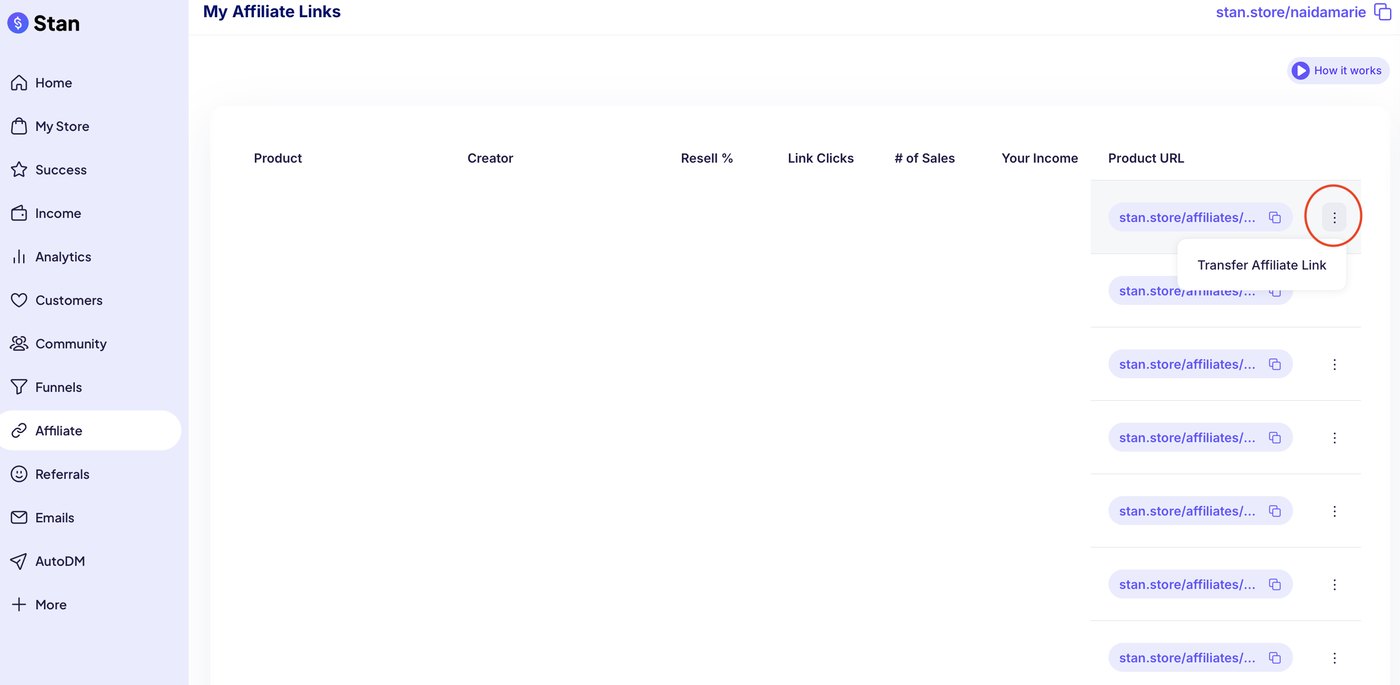
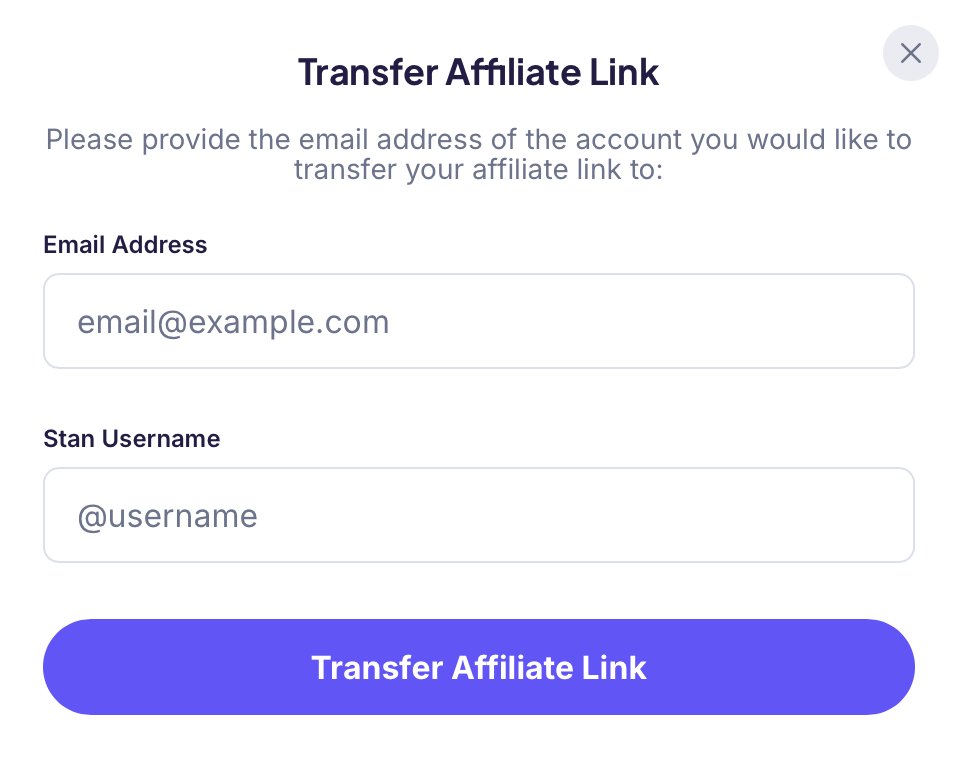
How to Transfer Your Affiliate Link to Another Stan Store Account
If you want to move your affiliate link to another Stan Store account using a different email address, follow these simple steps:
That's it! ❤️
Important Notes
This feature works only on a laptop/desktop computer.
It does not work through your phone's web browser or the Stan Store mobile app.
Make sure you're entering the details of the account you want to transfer the affiliate link TO, not the account you're currently using.
Always double-check your information before confirming the transfer.
🎬 Your Ready-Made Sneak Peek
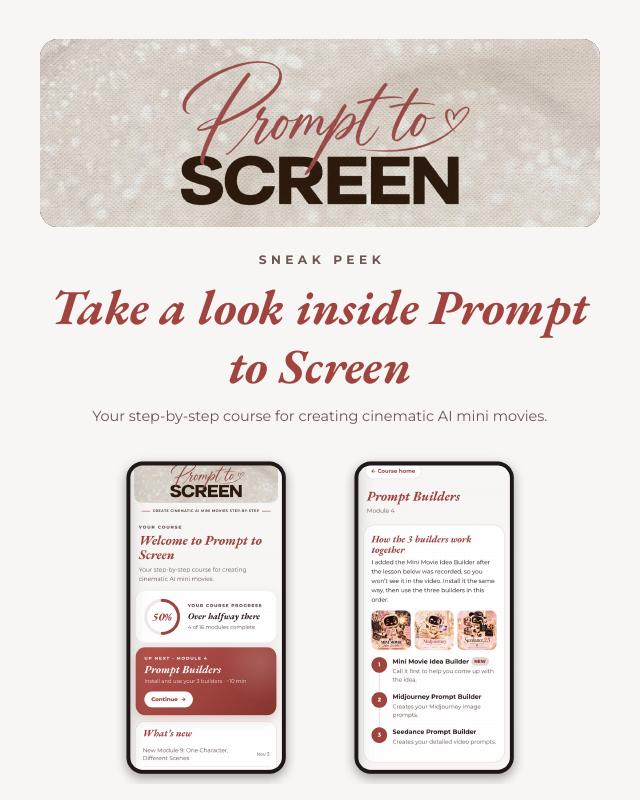
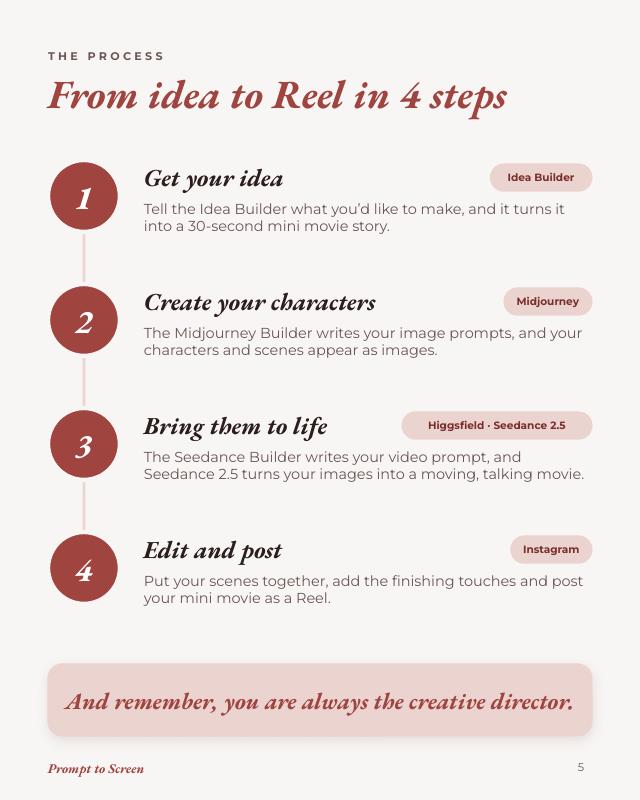
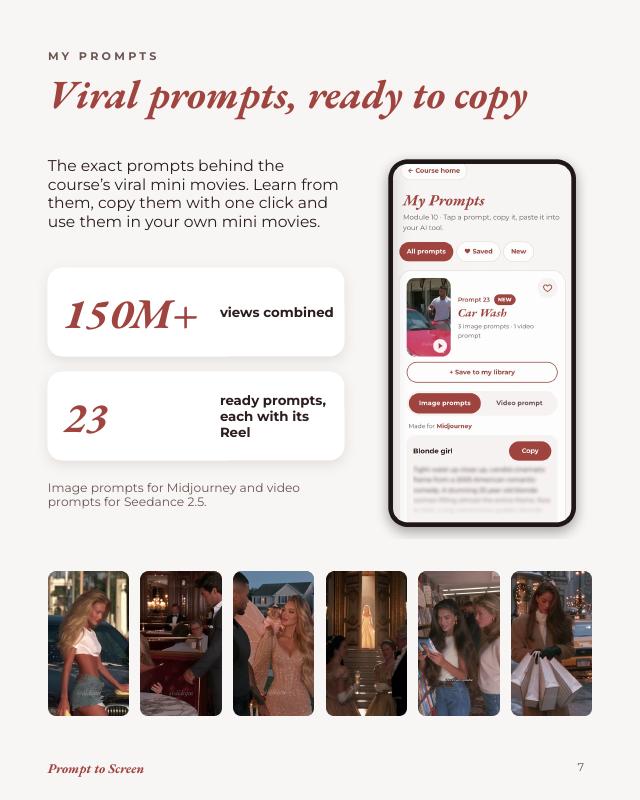
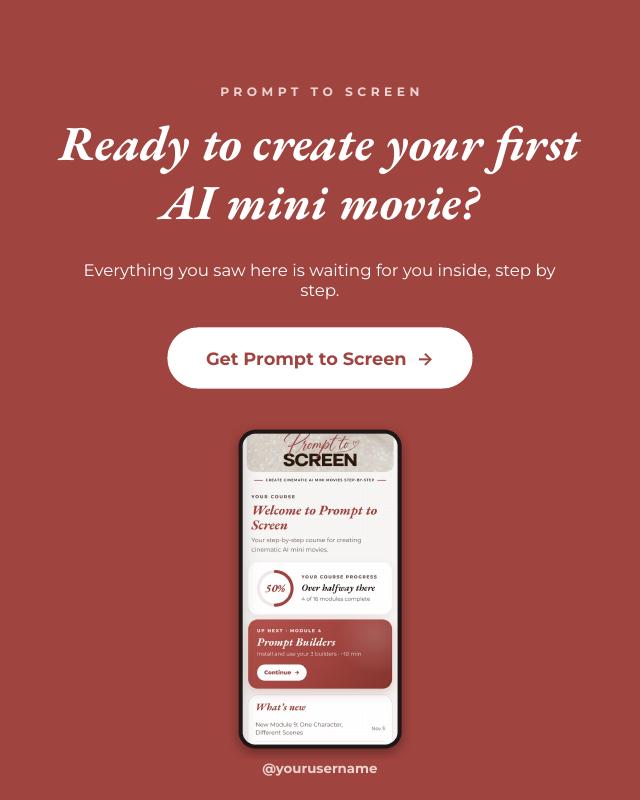
To make promoting Prompt to Screen easier, I’ve created a ready-made Sneak Peek you can share with your audience. It shows what’s inside the course, how it’s structured, the 3 Prompt Builders and how simple the whole process is, without giving the lessons away.
PowerPoint file · Google Drive · 10 pages · fully editable in Canva
How to use it
Upload it to Canva
Open Canva, click Create, choose Import file and select the PowerPoint file you just downloaded. Once it’s uploaded, open the design.
Make it yours Optional
Everything in the design is editable, so you can adjust it to fit your audience. Add your own results, like followers, views, sales or brand deals, or keep it exactly as it is.
On the last page, replace @yourusername with your own Instagram handle.
Add your affiliate link to the last page
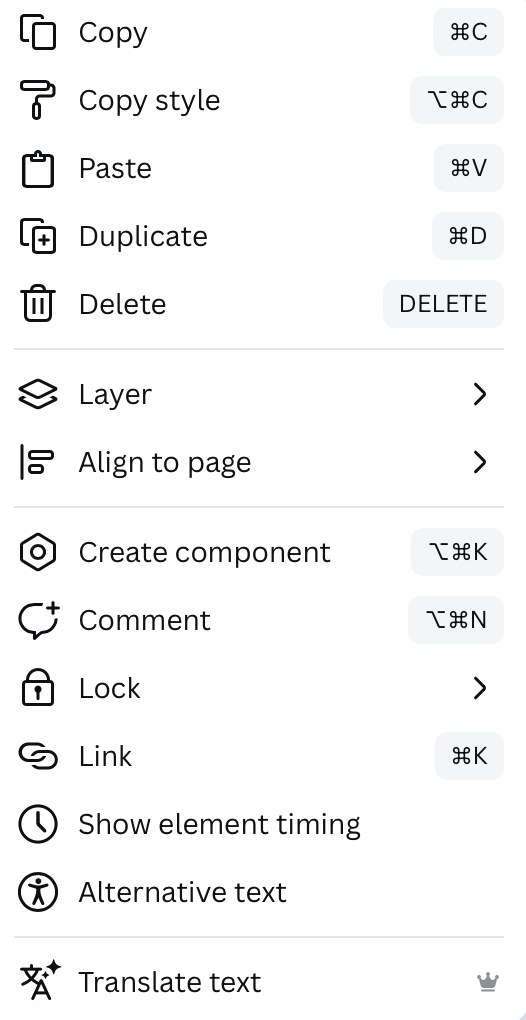
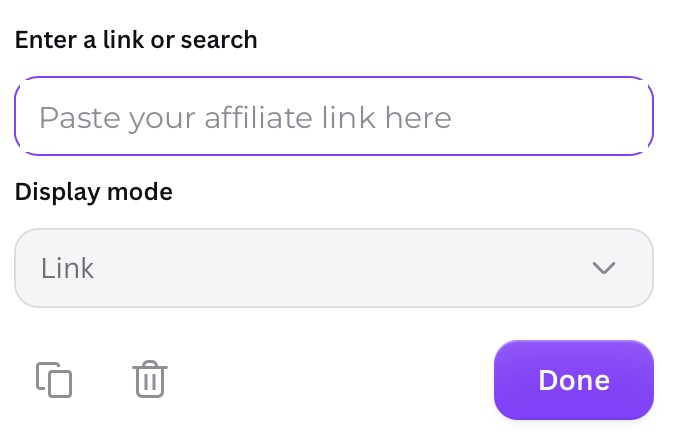
Right-click the Get Prompt to Screen button (on a Mac, you can also press Control and click), choose Link, paste your PTS affiliate link and click Done.
Don’t skip this step. Your affiliate link is how your sales are credited to you.
Share it with your audience
Choose whichever option you prefer:
Option 1 · Public view link Recommended
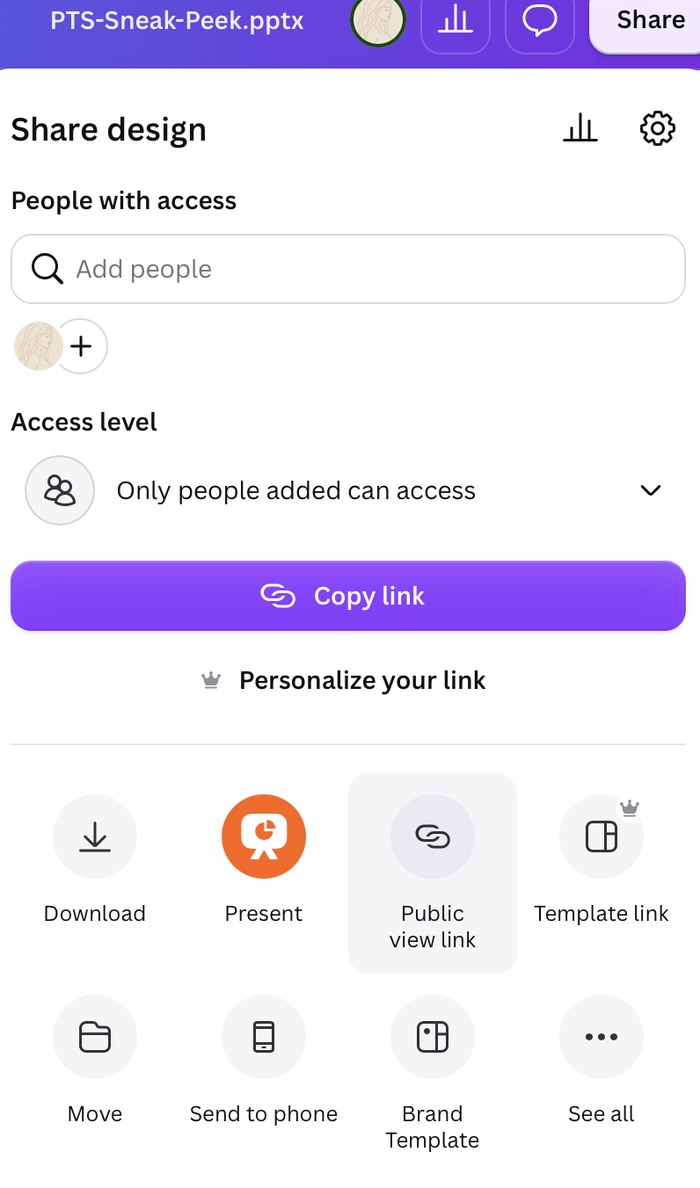
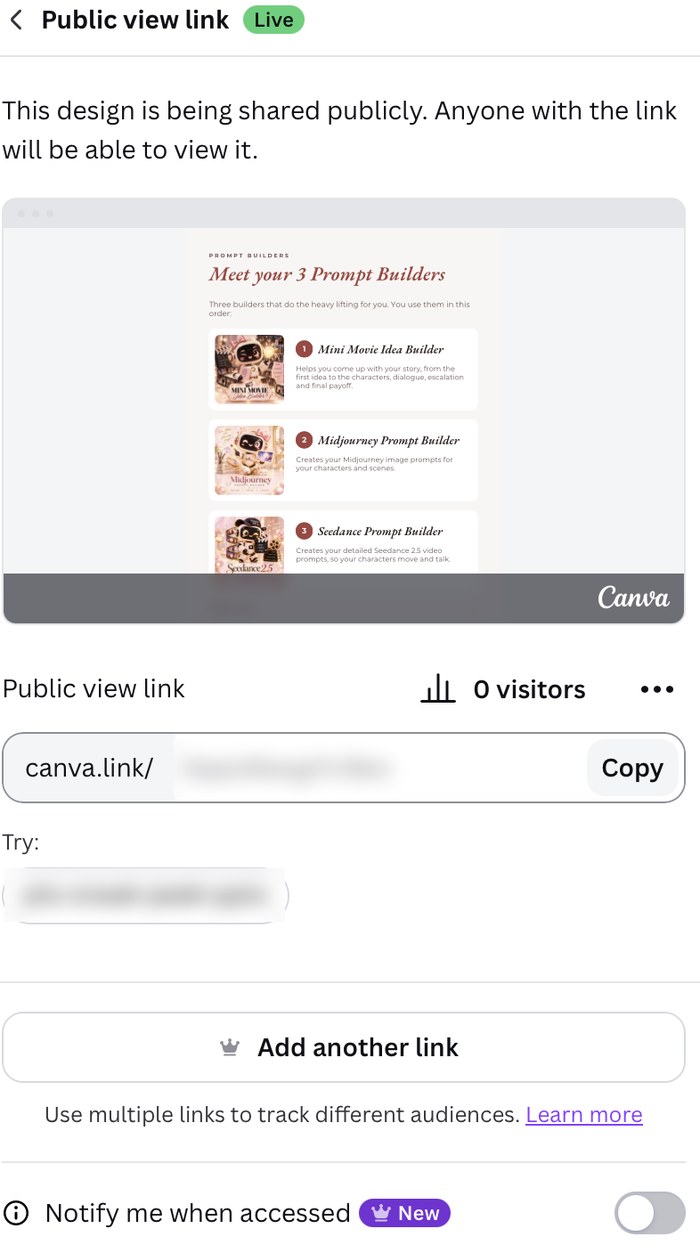
Click Share, choose Public view link, create the link and copy it. Then share it in your stories, DMs or on your link page.
This is the option I recommend. It opens instantly on any phone, nobody has to download a PDF, and the button on the last page is clickable.
Option 2 · PDF
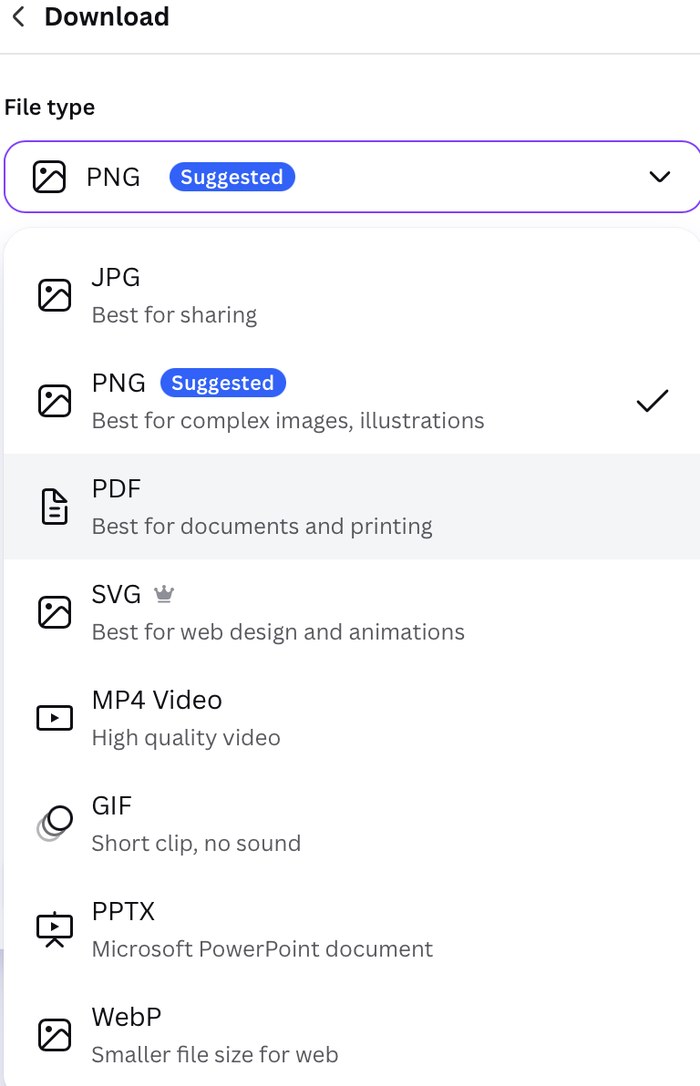
Click Share, then Download, choose PDF and download the file. You can then share the PDF however you like.